


- Contents
Interaction Recorder Client for IC Business Manager Help
Audio Playback Dialog
Use this dialog to control the playback of a recorded audio interaction.
Audio Menu
Use the Audio menu to select the audio device for the playback. The options are Primary Sound Driver or Telephone Handset. A list of available Playback Devices from Windows Sound is also displayed, between the Primary Sound Driver and the Telephone Handset options. The default audio device is displayed in the Audio menu in a bold font. The active (currently selected) Audio device menu item is selected (checked). You can also make the selected Audio device the default on this menu. Audio timing indicators display the current position in the recording and the total time of the recording.
Playback through Primary Sound Driver
Here are the playback controls that allow you to adjust the audio playback using your primary sound driver.
|
Playback Control |
Function |
|
|
Play or pause the recording |
|
|
Stop the recording |
|
|
Reverse or fast forward the recording |
|
|
Volume slider for audio playback |
|
|
Speed slider for audio playback
The available speed settings are: 0.5x, l.0x, 1.1x, 1.2x, 1.3x, 1.4x, 1.5x, 2.0x, and 4.0x. |


Playback through Telephone Handset
If you are playing back a recording through a telephone handset, use the telephone keypad to control the playback.
To control the playback:
|
Press |
To |
|
1 |
Slow down the recording |
|
2 |
Speed up the recording |
|
4 |
Decrease the volume |
|
5 |
Increase the volume |
|
7 |
Rewind ten seconds and continue playback |
|
8 |
Fast forward ten seconds and continue playback |
Note
When playing back a recording through the telephone handset, the audio disconnects when the recording has finished playing or when the stop button is pressed.
Media Menu
Use the Media menu to view Media Information properties, including Length, Audio format, and compression type. To view this information, click Media, and then click About.
Waveform
The Waveform displays a graphic representation of the sound in the recording. The Waveform area includes a recording time line that includes a position indicator and time, and the length of the recording. Bookmarks are displayed on the time line.
Note
When using the handset for playback, the WAV form is not displayed.
Playback Controls
The standard playback controls are Play, Stop, Rewind, Fast Forward, Mute, Volume, and Speed. Pause the mouse over a playback control to display its function. Audio timing indicators display the current position in the recording and the total time of the recording.
Bookmarks
Bookmarks can be added to Audio recordings, in the Audio Playback window, to identify places in the recording that you can easily return to. You can add a Bookmark while the audio is playing, or you can pause the audio to add a Bookmark. Bookmarks are identified by a custom label you create. You can also indicate a Start and End time for your Bookmark.
To add a Bookmark, while the audio recording is playing, click the Bookmark
control  . In the Add Bookmark
dialog, type the label information, and click OK. The Bookmark is inserted
at the point where you clicked the Bookmark control. You can also pause
the recording while adding a Bookmark. To Bookmark a span of Time in a
recording, use the Start Time and End Time fields.
. In the Add Bookmark
dialog, type the label information, and click OK. The Bookmark is inserted
at the point where you clicked the Bookmark control. You can also pause
the recording while adding a Bookmark. To Bookmark a span of Time in a
recording, use the Start Time and End Time fields.
To Edit or Delete a Bookmark, right-click a Bookmark and on the shortcut menu select Edit or Delete.
Bookmark Audit Trail entries
When Bookmarks are added, edited, and deleted, the related modified recording audit trail entry contains formatted comments. The comments include Bookmark text and Start and End times. Bookmarks can be up to 1024 characters, but the Bookmark comment text displays the first 512 characters, followed by an ellipsis.
Details pane
The interaction Details pages are displayed at the bottom of this window for your reference. You can use the Scoring page to add a Questionnaire or to Score this recording.
Media Details page
The Media Details page displays information about the recording. The details include: Recording Date, Recording ID, Expiration Date, Interaction ID Key, Initiation Policy, Archived indicator, Direction, Recording Length, Encrypted indicator, Recording Type, Snippet Initiator, Call Line, and Call Type.
Participant Data page
The Participant Data page displays information on the parties of the selected interaction. The page displays Attributes and Values for the interaction participants.
Attributes page
The Attributes page displays the defined custom attributes that apply to this interaction.
Audit Trail page
The Audit Trail page displays information on audit events. The information includes: Date/Time, Audit Event, User, and Comments on the event. Use the shortcut menu from the Audit Trail page to refresh the audit trail data.
Scoring page
The Scoring page is used to access a Questionnaire and Score a recording. Questionnaires that have previously been assigned to a recording are displayed on the Scoring page. Additional Questionnaires can be assigned to the recording on this page. Only questionnaires that have been published are available for scoring.
Note:
Non-admin users only see Questionnaire scorecards that they have scored. To allow users to see all scorecards for a recording, the CIC administrator can create a Security Policy so a user can view scorecards. This Security Policy can be applied to Agents or Roles. Questionnaire Directory Admin Access and other security rights will still apply. For non-admin users, in order to finish a scorecard that has already been scored by another user, the user must first save the scorecard to take ownership and then the user can finish the scorecard.
To assign a questionnaire, click Assign Questionnaire, and select a questionnaire from the Select Questionnaire dialog.
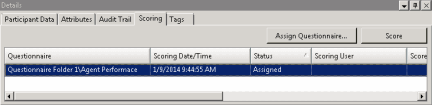
When you click Assign Questionnaire, the Select Questionnaire dialog is displayed. To assign a user to score the recording, select the Scoring user from the drop-down list. To select the completed scorecard for calibration purposes, select the Mark scorecard for calibration check box. To require an agent signature on the completed scorecard, select the Require scored agent signature check box. To assign a questionnaire to a recording you must have the Can Assign Questionnaires securit right, assigned in Policy Editor.
To score a recording, on the Scoring page, click Score. The Questionnaire to score the recording is displayed and the media player is launched displaying details of the recording.
Tags page
The Tags page displays Tags for a recording that were created in Policy Editor and assigned to a recording. Tags can be added and edited in the Playback window Details pane on the Tags page. To open the Playback window, click Modify Tags. The Playback window is displayed. If the Details pane is not showing, in the Playback window right-click, and on the shortcut menu point to Show and click Details.