


- Contents
Managed IP Phones Administrator Guide
Create DNS Service Location (SRV) Records for Switchover
If your implementation includes a Switchover pair, complete the following procedures to create the DNS SRV records required for provisioning for the two CIC servers so that the phones can find the active server when booting up (provisioning) and completing SIP operations.
You need to create a DNS SRV record for each of the supported SIP line transport protocols (UDP, TCP, and TLS over TCP (SIP Secure or _sips)) that you plan to use for the Switchover pair. For example, if you plan to use the TCP protocol, create two DNS SRV records for TCP, one for the active CIC server and one for the backup CIC server. You must be familiar with DNS server configuration and have required domain administrator permissions to complete the network configuration procedures.
If you plan to use all three protocols, you need to create six DNS SRV records, as shown in the following table containing sample entries:
|
Service |
Priority |
Weight |
Port |
Hostname |
|---|---|---|---|---|
|
|
0 |
0 |
8060 |
|
|
|
0 |
0 |
8060 |
|
|
|
0 |
0 |
8061 |
|
|
|
0 |
0 |
8061 |
|
|
|
0 |
0 |
8060 |
|
|
|
0 |
0 |
8060 |
|
Note:
-
Port configuration may vary. The ports specified in the table are the default port configurations in CIC that match the default registration group and SIP line configurations.
-
Interaction SIP Station I supports DNS SRV in CIC 4.0 SU 4 to SU 6 and CIC 2015 R1 and later, which contains v.1.2.2._p10_build_17 or later firmware.
-
Interaction SIP Station I and II support DNS SRV in CIC 2015 R2 and later which contains v.2.0.4.15.7 or later firmware.
-
AudioCodes and Genesys phones support DNS SRV in CIC 4.0 SU 5 to SU 6 and CIC 2015 R1 and later, which contains v2.0.0.18 or later firmware.
To create the DNS SRV records
-
Right-click on
lab.voipto create two DNS domains for SRV (one for_tcpand one for_udp) and then click New Domain.
-
In the New DNS Domain dialog box, type _tcp.

-
Repeat steps 1 and 2 to create the _udp domain.
-
Right-click on the new DNS forward lookup zone for voice (in this example,
lab.voip) and then click Other New Records
-
In the Resource Record Type dialog box, click Service Location (SRV) and then click Create Record.

-
In the New Resource Record dialog box, complete the information for the first DNS SRV record for the active CIC server.

Service: Name of the service for this DNS SRV record (for example, _
sip).Protocol: Protocol for this DNS SRV record (for example,
_tcp). The container for the protocol will be created if it does not already exist.Port number: Port number for this DNS SRV record (for example,
8060).Priority: Leave the default setting.
Weight: Leave the default setting.
Host offering this service: FQDN name of the active CIC server (for example,
vm40ic1.lab.voip). -
Repeat steps 4 through 6 to create the DNS SRV record for the same protocol for the backup CIC server. Ensure that all the boxes in the New Resource Record identical are identical to the first DNS SRV record except for Host offering this service. Use the name of the backup server (in this example,
vm40ic2.lab.voip). -
Repeat steps 4 through 7 to create the rest of the DNS SRV records for the Switchover pair. Following is an example of the DNS SRV records created in the _tcp container for TCP and TLS over TCP.

-
To verify the records that you created in the _tcp container, run an nslookup on the command-line for this record, for example,
_sip_tcp.lab.voip.The server returns the IP addresses in a random order.
Following is an example of the DNS SRV records created in the _udp container.

-
To verify the records that you created in the _udp container, do an nslookup on the command-line for this record, for example,
_sip_udp.lab.voip.The server returns the IP addresses in a random order.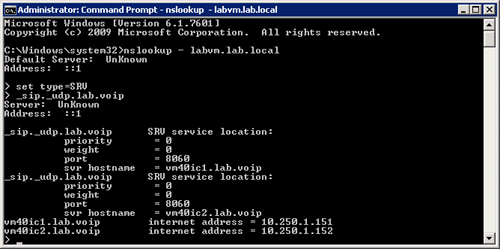
In Create Individual Managed IP Phones for Test Purposes, you configure the default Registration group to obtain registration settings from the DNS SRV records that you created.