


- Contents
Managed IP Phones Administrator Guide
Create Individual Managed IP Phones for Test Purposes
Genesys recommends creating individual managed IP phones for the appropriate managed IP phone types in your CIC system for test purposes, before proceeding with a full managed IP phone implementation. Create at least one individual managed IP phone for each of the managed IP phone types that you plan to implement and configure for your test purposes.
To create individual managed IP phones
-
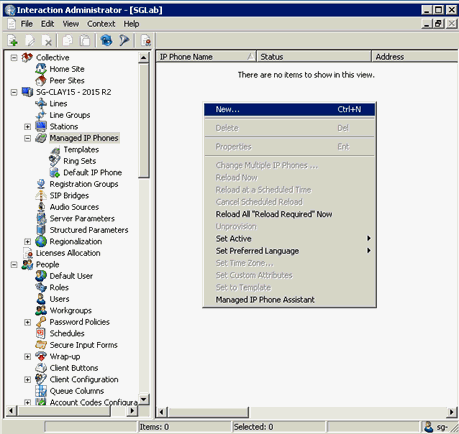
Open Interaction Administrator, right-click in the Managed IP Phones container, and then click New
-
In the New Managed IP Phone dialog box, type the information for the first managed IP phone type to create and then click OK.
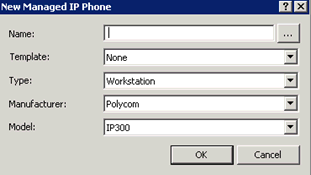
Name: Name of the new managed IP phone.
Template: Keep the default setting of none. (It is not necessary to create a managed IP phone template until you Create Multiple Managed IP Phones Procedure Summary.)
Type: Type of IP phone: Workstation or Stand-alone phone.
Note:
If you are creating a managed IP phone for Interaction SIP Station, do not select Stand-alone phone. The system doesn't support it.
Manufacturer: IP Phone manufacturer. The supported manufacturers are AudioCodes, Genesys, ININ, and Polycom. Select ININ for Interaction SIP Station I, Interaction SIP Station II, and SIP Soft Phone.
Model: Phone model based on the manufacturer. If the manufacturer is AudioCodes, Genesys, or Polycom, choose from a list of AudioCodes, Genesys, or Polycom phone models. If the manufacturer is ININ, choose Interaction SIP Station (for Interaction SIP Station I), Interaction SIP Station II or Soft Phone.
-
In the Managed IP Phone Configuration dialog box, type the information on the General tab to define for this managed IP phone type for test purposes.
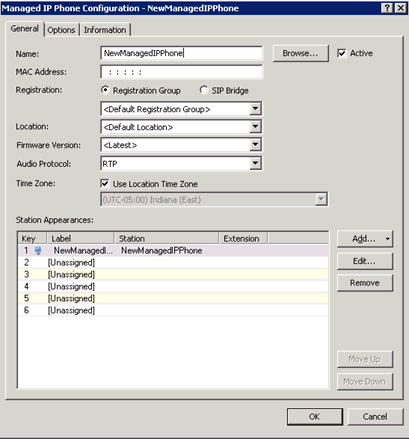
Name: Unique name of this IP phone.
Active: Keep the default setting of Active for this managed IP phone.
MAC Address (Polycom, Interaction SIP Station I and II, AudioCodes, Genesys): MAC Address in the following format: xx:xx:xx:xx:xx:xx. Polycom addresses start with
00:04:f2. Interaction SIP Station MAC addresses start with00:26:fd. AudioCodes and Genesys addresses start with00:90:8f. -
Under Station Appearances on the Managed IP Phones Configuration General tab, click Edit to open the Station Configuration for the selected managed IP phone.
-
On the Station Configuration-Configuration tab, type the information to define for the station appearance for test purposes.
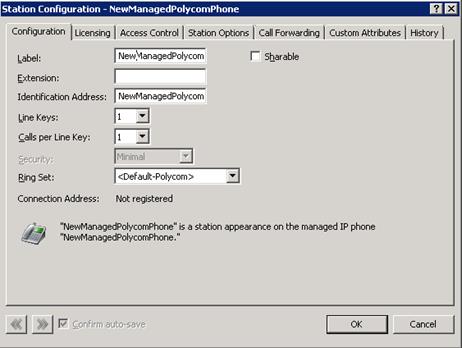
Extension: Extension number for this station appearance.
Changes to other Configuration tab settings are optional. For more information, see the Interaction Administrator Help.
-
Click the Station Configuration-Licensing tab.
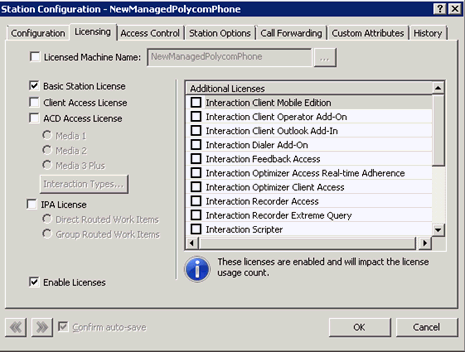
The system assigns a Basic Station License by default to the SIP station appearance associated to the managed IP phone. Assign other licenses, such as Client Access and ACD Access, as needed for test purposes.
-
Click OK to return to the Managed IP Phone Configuration dialog box.
-
To configure additional options for the managed IP phone for test purposes, see the Managed IP Phone Configuration-Options tab. The available options vary, depending on the managed IP phone type.
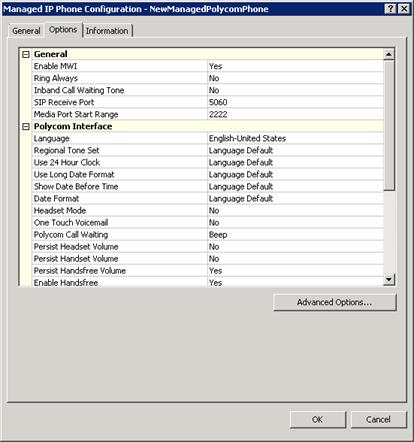
For more information about these Polycom configuration options, see the Interaction Administrator Help.
Note:
If you have not configured QoS for RTP and SIP as described in Implement QoS in Your Environment, do so now.
-
Repeat the previous steps to create a managed IP phone for the other managed IP phone types you plan to implement.
Full Computer Name: (SIP Soft Phone) Type the full computer name of the managed IP phone. The correct full computer name is on the SIP Soft Phone user's computer. To see the full computer name, click My Computer -> Properties -> Computer Name. For example: PattyJ.acme.com or PattyJ.
Registration: Select Registration Group. Depending on your implementation and what you plan to test, it may be necessary to modify the default registration group. For more information, see Registration Groups.
Location: Keep the default location unless you plan to test multiple locations. Besides reading SNTP settings from the phone, the CIC server uses the location settings to determine the codecs to use for the phone’s audio during the call.
Firmware Version: Firmware version for this managed IP phone. By default, the recommended option of <Latest> is selected. Older firmware versions installed previously on this system can also appear in the list box. In certain scenarios, you can select older approved firmware for this phone model. For example, to control the rollout of new firmware to a managed IP phone or group of managed IP phones during a release update.
Note:
If the selected managed IP phone model does not support the selectable firmware feature, this option isn't available.
Audio Protocol (Polycom, SIP Soft Phone, Interaction SIP Station I and II, AudioCodes, Genesys): The system can unencrypt the audio stream on this IP phone using RTP (Real Time Protocol) or encrypt it using Secure RTP (SRTP). If you plan to use TLS/STRP, select STRP. Otherwise, leave the default setting of RTP. (Certain Polycom IP phone models do not support this audio protocol option; therefore, this option doesn't appear.)
Time Zone (Polycom, Interaction SIP Station I and II, AudioCodes, Genesys): The time zone that set here passes to the phone during configuration. This option overrides the setting that is in the phone’s configuration.
Note:
You can also configure the time zone for these three managed IP phone types with Options 002, 004, and 042 on the DHCP server.
Station Appearances: As part of creating managed IP phones, you create associated SIP station appearances on those IP phones. Proceed to step 4 to configure the station appearance for this managed IP phone.