


- Contents
PureConnect CX Insights Help
Log On
Log on to CX Insights from your browser. Your CIC administrator can provide you the URL (https://<CX Insights Server>/MicroStrategy/servlet/mstrWeb) for the login page.
-
Open the URL in any supporting browser. The Log on with dialog page appears.
Note: If SAML authentication enabled in GCXI
container, then it would redirect you to CIC server authentication page.
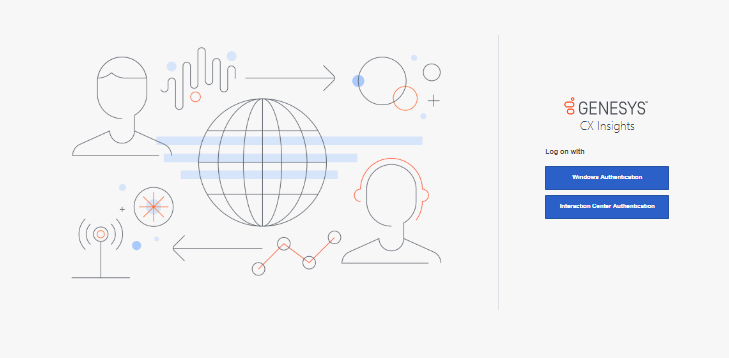
By default, Windows Authentication and Interaction Center Authentication are
available.
-
On the Log on with dialog page, click one of the following:
-
Windows Authentication to use your Windows User ID and Password to log in.
-
Interaction Center Authentication to use your CIC user name and password to log in.
Notes
-
The Log on with dialog page appears, when you use more than one type of credentials to log in.
-
If your CIC administrator has configured other Identity Providers in Interaction Administrator, other available options appear on the Log on with page.
-
Depending on the chosen authentication method, enter the appropriate login credentials.
-
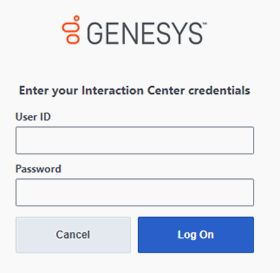
If you selected Interaction Center Authentication, enter your CIC User ID and Password as configured in Interaction Administrator. Click Log On.
-
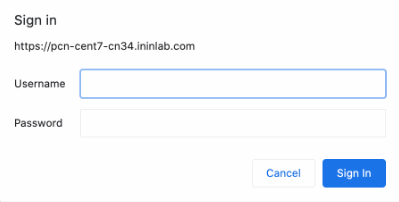
If you selected Windows Authentication, in the Authentication Required dialog box enter your Windows user name and password. Click Sign In.
Notes:
-
This dialog box appears only when your CIC administrator enables Windows credentials to pass automatically to the CIC server. Also, the appearance of this dialog box varies according to the browser you use.
-
If you selected another identity provider in the Log on with dialog box, follow your CIC administrator's instructions for entering credentials and logging on.