

- Contents
PureConnect Release Notes
Enhancements to Interaction Client .NET Edition
CIC SU2 contains several new features in the Interaction Client .NET Edition.
Enhancements to the My Interactions View
Several improvements have been made to the My Interactions view, specifically for multichannel users. New columns allow agents to access immediately the contextual information for an interaction.
The new columns are:
-
Details
This column contains context-specific information that is based on the interaction type. For calls, it displays the Remote Address (phone number). For callbacks, it displays the subject of the callback. For emails, it displays the email subject, importance, and whether there are attachments. For chats, it displays the name of the user who last typed, and the text they entered. It also shows a typing indicator (icon) to indicate that someone is typing in the chat. -
Attachments
This column displays an icon indicating that an attachment exists on for an email interaction, or is blank if no attachments exist. Although this information is also available through the Details column, but is included here to allow sorting. -
Chat Response Time
This column displays a counter that indicates how much time has elapsed since the last text was entered in the chat. -
Importance
This column displays an icon that indicates whether an email is of high or low importance, and is blank for an importance level that is neither high nor low. This information is available in the Details column, but is included here to allow sorting.
Each of the columns described is either assigned (or restricted) based on Access Control Lists in Interaction Administrator. The new columns appear in the My Interactions view, but are also available when viewing different queues from both Interaction Client .NET Edition and Interaction Supervisor.
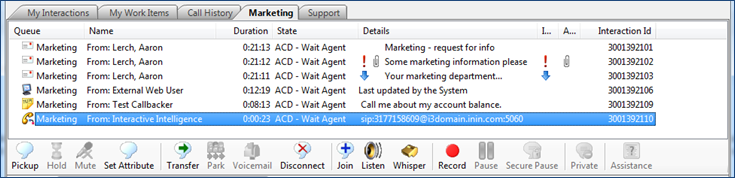
Marketing Queue with the New Columns
Improved Response Management
Response management includes changes to improve handling of multi-channel interactions.
The user interface for managing responses in Interaction Administrator and Interaction Client .NET Edition has changed significantly. The main management window allows a user to view and preview response items and categories. When adding or updating an item, you use Edit Mode, which is shown in the following figure.
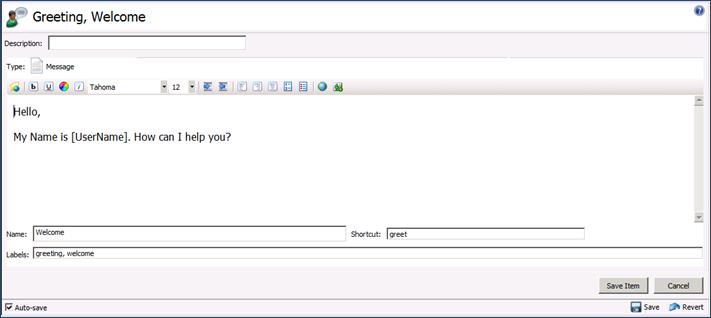
Managing Responses in Interaction Administrator
The editor is based on the response type you are creating. For a message or URL, you use the HTML editor. For a file, you use the drag-drop target editor. You can now assign shortcuts to responses to allow quick access to the most commonly used responses. You can also label responses to improve search functionality and make it easier for users to get the correct response quickly.
You can now use response macros in defined responses. Response macros allow you to put a placeholder in a response. The constant, attribute, or the name of another response is automatically inserted in the response when you use it.
For example:
This macro: My name is [UserName]. Today is [Date]. How can I help you?
Results in: My name is Mary Jones. Today is 8/28/2012. How can I help you?
The macro allows you to put a placeholder in the response, automatically being substituted when using the response. The following types of macros are supported:
-
Constants à User name, date, and time
-
Attributes à Values based on interaction attributes
-
Response à Another response
The response sidebar in Interaction Client now contains an in-dialog search option. Users can quickly search all responses and can preview the actual response before adding it. The following figure shows the in-dialog sidebar.
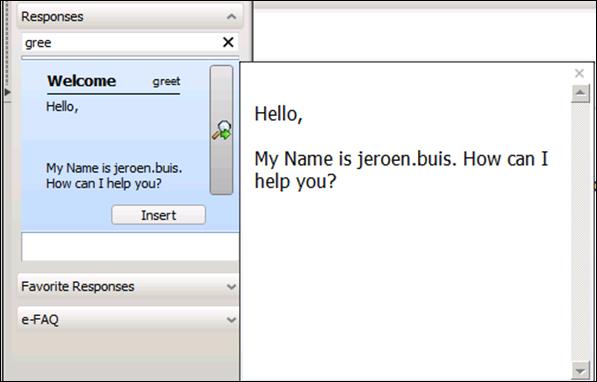
Response Search Dialog
The response search functionality also allows advanced search criteria, including the use of AND, OR, and NOT operators, exact phrase searching, grouping, and specific field searches.
Consolidated Chat Window
CIC SU2 includes several enhancements to allow better handling of multiple chat interactions at once. Instead of having multiple forms, one for each chat interaction, the Chat view now appears in the main window.
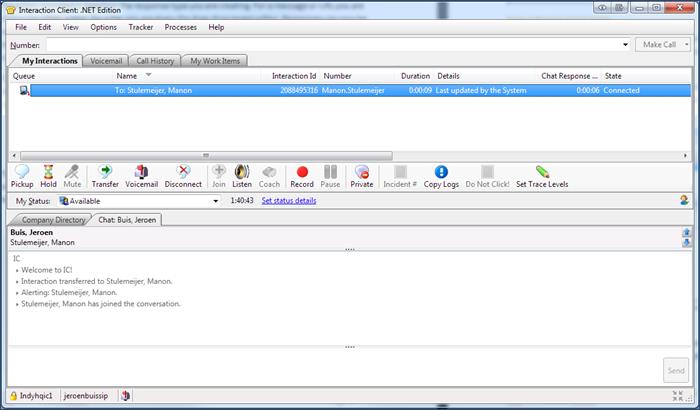
New Chat View
Users handling multiple chat sessions can now just select the chat interaction they want to work on and the Chat view displays the selected conversation. The new Chat Response Time column described earlier in the document helps the user determine which chat interaction has been waiting the longest. It is also possible to navigate through the various chat sessions with the navigation buttons or hot-keys.
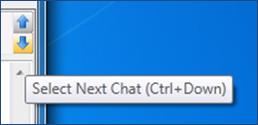
Chat View Navigation Controls
Another new feature is chat highlighting. An administrator can configure thresholds for time limits, and chat interactions that have exceeded the threshold are highlighted.
Interaction Client Mini Mode
The new Interaction Client Mini Mode allows you to run Interaction Client using a smaller footprint.
Interaction Client Mini Mode provides a compact view of your current interactions. If you have the appropriate security right, you can switch between the full Interaction Client view and one of two smaller views. Interaction Client Mini Mode supports all media types.
The Mini Mode view has these unique features:
-
Status bookmarking allows users to bookmark and show the most commonly used status messages so that they can quickly switch between them.
-
When an agent types the name of a person to dial in the Make Call window, the call auto-complete feature searches for the entry in the Company Directory and Call History.
-
The snap to top feature allows a user to snap Interaction Client Mini Mode to the top of the screen. When there is no activity, the Interaction Client Mini Mode automatically disappears. When an interaction arrives, or when the user moves the mouse to the top of the screen, Interaction Client Mini Mode reappears.
The following figure shows Interaction Client Mini-Mode:
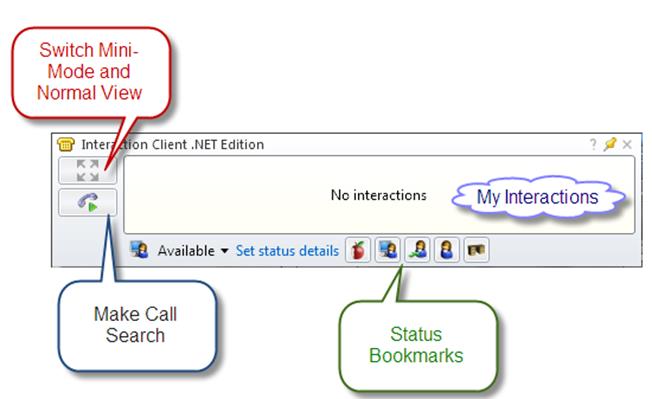
Interaction Client Mini Mode
Agent Photo and Office Location Pictures
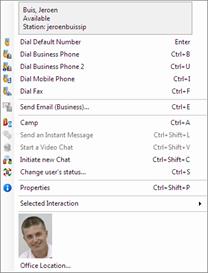
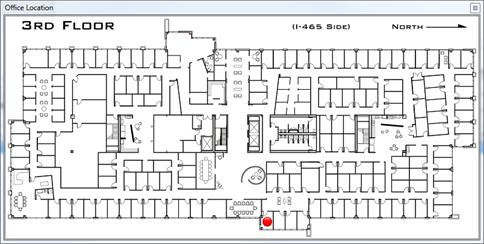
Interaction Client .NET Edition and Interaction Supervisor now support the agent photo and office location features. Users can view agent photos and office location diagrams through the directory control in either application.