


- Contents
Salesforce Object Routing Server
Troubleshooting the Salesforce Object Routing Server
Salesforce Object Routing Server Status Dashboard
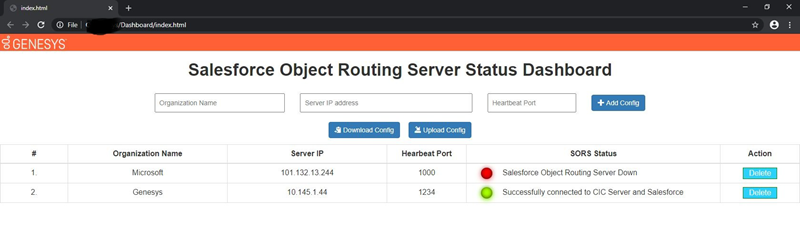
The dashboard webpage enables you to monitor the Instance status of Salesforce object routing servers (SORS) running for different tenants. You can configure this dashboard to monitor SORS status for multiple tenants. The Heartbeat port should be the port number configured at the logon page for the SORS instance. This dashboard also displays several status messages if something goes wrong with the instance.
The dashboard features the download of the currently configured table. The location for the downloaded configuration file is the “Downloads” folder of the user account. Administrators can also upload the configuration file using the Upload Config button on the dashboard page. A green circle indicates a running and configured SORS service; a red circle indicates a stopped SORS service.
All the Salesforce queues are fetched from Salesforce and subscribe to only those queues in CIC server for getting the interactions-related information.
The dashboard webpage file location is "[InstalledPath]/Dashboard/index.html".
Running behind proxy server
The service automatically detects the Windows proxy server settings configured in Windows server and send each request through proxy server. SORS instance should be restarted if proxy server configurations are changed in the Windows server.
Windows Event Logs
SORS instance will generate several Windows event logs for few scenarios related to connection success, failure and reconnection with Salesforce and IC server. Customers and PCC environment monitoring applications can use these Windows event logs. Some of the event data messages include:
-
Successfully connected to Primary CIC server
-
Logged in successfully to Salesforce
-
Error:503: Connecting to alternate CIC Server
-
Failed to connect to IC server
-
Re-logging to Salesforce
Logs
The Logs path is based on the Windows environment variable ININ_TRACE_ROOT. If ININ_TRACE_ROOT is not defined, the default path would be "[InstalledPath]/logs/sors_service-%DATE%.log". The logs are created on daily basis and older logs are removed based on elapsed days
Edge Cases
If the SORS instance process is terminated or killed, Windows automatically starts the SORS service. All the Salesforce queues are fetched from Salesforce and subscribe to only those CIC workgroups in the CIC server for getting the interactions-related information. The Salesforce Object Routing Server supports Off-Host Session Manager and Switchover environments.
When the SORS instance starts, it logs in to the CIC server and Salesforce. Then it scans the Salesforce object routing table for un-routed Salesforce case objects and processes the unrouted cases.
Email interactions stop routing
Problem
Push Notifications for the Salesforce Console do not work after deploying the Salesforce Console app in the target org or in a refreshed sandbox.
Causes
Emails stop routing after sandbox refresh because Push Notification Objects and Fields in Console configuration are not copied when deploying a Console app or when refreshing a sandbox. No notification means that the connector never hears about the new salesforce objects.
The cause of emails failure is due the removal of Push Topics. Push Notifications are part of Salesforce streaming API which helps in subscribing the ININ Object Routing Queue table to SORS.
The cause of emails failure is due the removal of Push Topics. Push Notifications are part of Salesforce streaming API which helps in subscribing the ININ Object Routing Queue table to SORS.
Solution
Tip: See also the Salesforce help topic, Configure Push Notifications for a Salesforce Console in Salesforce Classic.
You can recreate the Push Topic following these steps:
-
From Setup, enter Apps in the Quick Find box, then select Apps.
-
Select the name of a Console App.
-
Select Select objects and fields for notifications next to Choose Push Notifications.
-
In the Push Notifications page, click Edit.
-
In the Choose objects for push notifications list, select ININ Object Routing Queues.
-
In the Choose fields for push notifications section, select Edit.
-
Add all Available Items to the Selected Items list and click OK.
-
In the Push Notifications page, click Save.
- In the Workbench Application, click queries and select Streaming Push Topics option from the list.

-
In the Streaming Push Topics page, select ININ_ObjectRouting option from the Push Topic list.
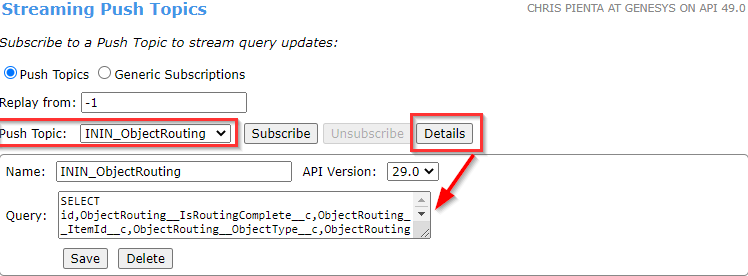
- To display the object Name, API Version, and Query boxes, click Details.
- To delete the details, click Delete.
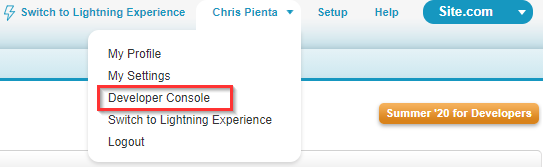
- Click
 next
to the user name and select the Developer
Console from the list.
next
to the user name and select the Developer
Console from the list.
-
Select the Open Execute Anonymous Window from the Debug list.

-
In the Open Execute Anonymous Window, run the below script.
PushTopic pushTopic = new PushTopic();
pushTopic.Name = 'ININ_ObjectRouting';
pushTopic.Query = 'SELECT id,ObjectRouting__IsRoutingComplete__c,ObjectRouting__ItemId__c,ObjectRouting__ObjectType__c,ObjectRouting__QueueName__c,ObjectRouting__SearchableID__c,ObjectRouting__SenderEmail__c,ObjectRouting__SenderName__c,ObjectRouting__Direction__c, ObjectRouting__InteractionType__c, ObjectRouting__AdditionalAttributes__c, ObjectRouting__Skills__c FROM ObjectRouting__ININ_Object_Routing_Queue__c';
pushTopic.ApiVersion = 29.0;
pushTopic.NotifyForOperationCreate = true;
pushTopic.NotifyForOperationUpdate = true;
pushTopic.NotifyForOperationUndelete = true;
pushTopic.NotifyForOperationDelete = false;
pushTopic.NotifyForFields = 'Referenced';
insert pushTopic;
-
Restart the SORS.
SORS service failed to start
SORS is a node.js app written in JavaScript. The node-windows NPM module creates the Windows service (sors_service). This service creates two internal processes. The parent process is sors_service.exe (Windows Wrapper Service). This parent process starts one child process named cic-crm-middleware-email-to-case.exe (SORS Node.js application). If the service stops gracefully, then both the process are exited. (Expected outcome). But if the service is idle for long time, Windows may automatically shut down the parent service and leave the child process active.
To shut down the child process and restart SORS:
- Open Task Manager and locate the cic-crm-middleware-email-to-case.exe process.
- End the child process.
- Restart the SORS service from services.