


- Contents
Search for an Account Using Conditions
Use the Advanced Search tab in the Latitude Search - Search for Account window to search for accounts using conditions. You can search using any combination and number of search conditions. For more information about conditions, see Create a Search Condition.
To search for an account using conditions
-
In the Main Menu window, click Work or press Alt + W. The Work Form appears. The Work Form appears.
-
From the Search menu, click Search or press Ctrl + F. The Latitude Search - Search for Account window appears.
-
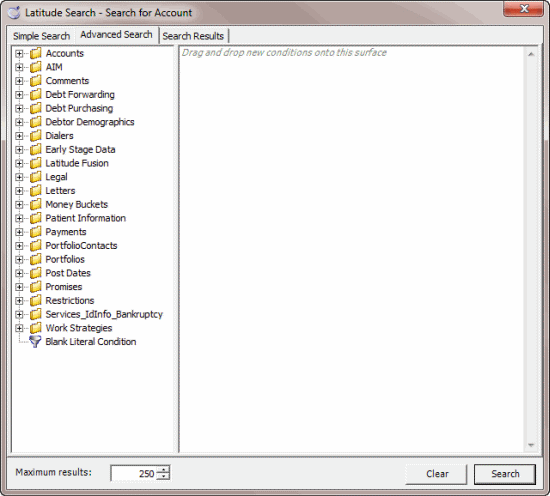
Click the Advanced Search tab.
-
Click the plus sign (+) next to a folder to expand it.
-
Click a condition and drag and drop it into the Conditions pane. A dialog box displays to allow you to specify the criteria.
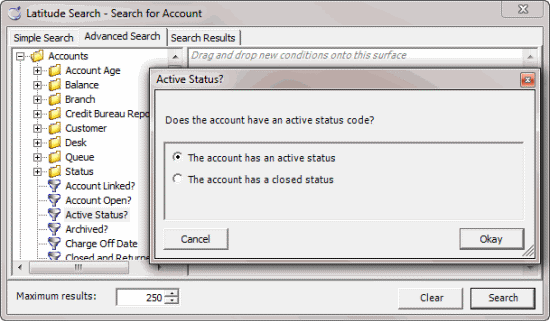
Note: The title of the dialog box and the information displayed depends on the type of condition selected.
-
Specify the condition and click Okay. The condition appears in the Conditions pane.

-
Continue adding conditions as necessary.
Tip: For fewer results, set more conditions. For more results, set fewer conditions.
-
When you have the conditions set, click Search. The results display on the Search Results tab.
Tip: To clear the search criteria, click Clear, and then in the confirmation dialog box, click Yes.