


- Contents
PureConnect Release Notes
Accessibility Enhancements in Interaction Connect
As part of a continuing program to provide accessibility enhancements based on WCAG 2.0 (Web Content Accessibility Guidelines), this release includes:
-
Favorite Status: You can now use the keyboard to select favorite statuses and have them appear as Fast Status buttons in the My Status section. For more information, see Set Status in Accessibility Mode.
-
View Navigation: You can navigate from view to view using the keyboard. Ctrl+Shift+.(period) moves to the next view. Ctrl+Shift+,(comma) moves to the previous view. For more information, see Keyboard Navigation.
-
My Interaction Keyboard Shortcuts: Keyboard shortcuts are now available for My Interactions commands like Pickup and Transfer. For more information, see My Interactions Shortcuts.
-
Keyboard creation of Conference Calls: Use the Command Palette and the keyboard to create conference calls. For more information, see Create a Conference Call in Accessibility Mode.
-
Improved keyboard navigation:
Tip: See Keyboard Navigation for more information about these and other navigation options.
-
-
When you work with Chat messages in the Current Interaction view, you can now tab to the Qoute icon (reply). This icon is now highlighted on hover or select. JAWS reads out a "Do you want to reply to this message?" prompt.
-
Focus now switches automatically to the Current Interaction view when you pick up a Callback interaction. Until you pick up a Callback interaction, the focus is on the Pickup button.
-
You can tab to the various elements of an email message in the Current Interaction view when composing a reply and then tab to the Send button. JAWS will read out all elements of an email message except for the body of the message. When viewing a sent or received email message, you can tab to the subject and address fields.
-
Use Tab to navigate to all the fields and controls in the Advanced Dialing Options and Transfer dialog boxes. JAWS also reads out the contents of all fields.
-
In the Applications Settings dialog, use the Up and Down arrows to select a setting type in the left side panel. Press Spacebar or Enter to move to the right-side settings panel. Focus moves to the first element in the panel.
-
-
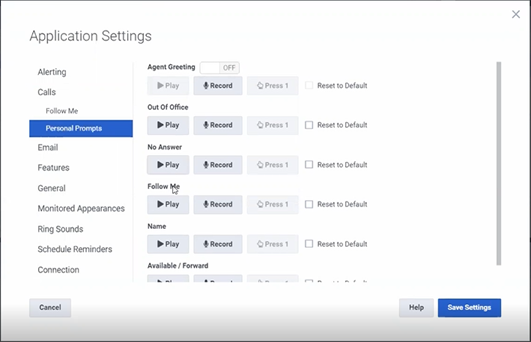
Streamlined Personal Prompts configuration: When you configure personal prompts, you no longer have to expand sections one at a time for each type of personal prompt. You can now just tab to the to the Record and Play options for each type of prompt. For more information, see Personal Prompts.
Note: This enhancement applies to all users.
-
Improved contrast in the user interface:
Note: To see these enhancements, you must enable Accessibility Mode.
-
-
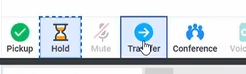
Outlines with dashes provide better contrast for the currently selected column heads, table cells, and toolbar buttons.

-
A solid border indicates your cursor is hovering over a toolbar button. A selected toolbar button has an outline with dashes.
-
-
-
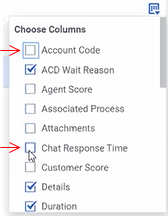
In the Choose Columns Control, tabbing to a check box produces a solid outline. Hover makes the check box darker.
-
-
-
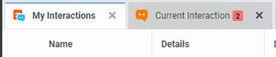
Black numbers on badges make them easier to read.
-